 By Ibtisam Virk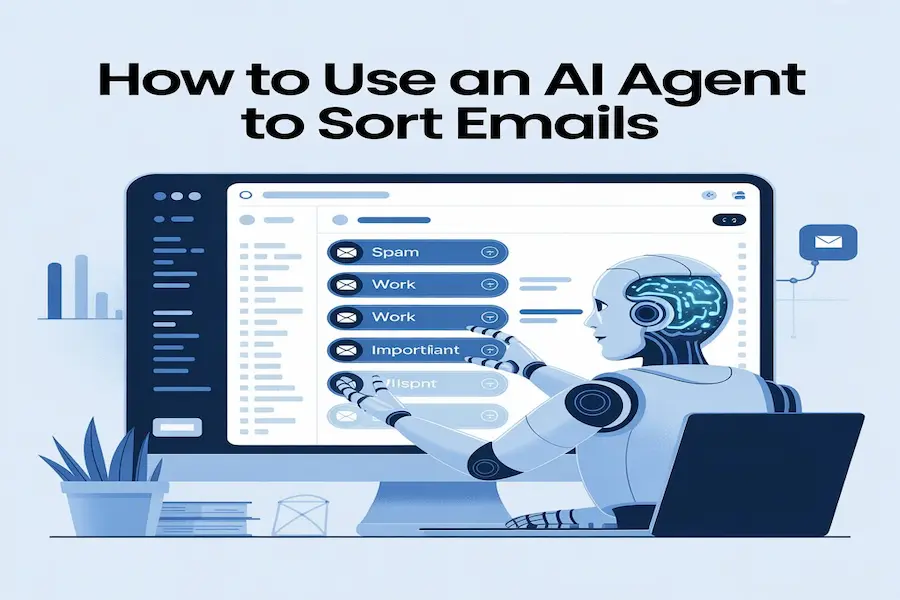
I used to spend over two hours every morning just sorting my inbox. Newsletters buried in client emails. Sales pitches mixed in with urgent project messages. I would open my laptop, see 90 new emails, and feel my chest tighten before the day even started. Sound familiar? Research from McKinsey Global Institute shows that the average professional spends 28 percent of their entire workweek managing email. That works out to about 11 hours every week time that could go toward real work, real conversations, or just getting home on time.
That changed to Use an AI Agent to Sort Emails .Two weeks later, my inbox was transformed. The important messages were at the top. The newsletters were filed away. I only dealt with what actually needed my attention. In this guide, I will show you exactly how to use an AI agent to sort emails, which tools work best, how to stay safe, and how to set everything up step by step even if you have never used an AI tool before.
What Is an AI Email Agent?
An AI email agent is software that reads your emails and sorts them automatically. It decides which messages need your attention right now and which ones can wait.
This is very different from the basic filters you might already use. A regular filter follows a simple rule you set manually. For example, you tell it: move any email with the word invoice to a folder. It cannot tell the difference between an invoice from a supplier and a casual message from a friend who happened to mention an invoice.
An AI agent is much smarter. It reads the whole email. It looks at who sent it, what they said, how you have responded to them before, and how important the message seems. Then it sorts the email into the right place.
The Brains Behind the Sorting: NLP and ML
Two technologies work together inside every AI email agent. Do not delete anything without asking me first.
Natural Language Processing (NLP)
NLP helps a computer understand plain language. When an email arrives, the AI reads it using NLP to figure out what it is really about. Is it a meeting request? A complaint from a client? A newsletter you signed up for three years ago? NLP gives the AI the ability to understand meaning, not just keywords.
Machine Learning (ML)
ML is how the AI gets smarter the more you use it. Every time you move an email to a different folder, flag something as important, or delete a message, the AI pays attention. It learns your habits. After about two weeks, it starts to match your preferences almost exactly. It knows your boss is a priority. It knows that a certain sender always has urgent requests. You train it just by doing what you normally do.
Why You Need an AI Assistant for Your Inbox
An average office employee gets around 121 emails daily. Most of those emails do not need an immediate reply. But finding the few that do is the problem. Here are three real reasons people switch to AI email management.
1. Stopping Email Overload
Email overload happens when you receive more messages than you can realistically process. It causes stress. It causes important emails to get buried. An AI agent acts as a personal filter it reads everything first so you only have to deal with what matters.
2. Getting Your Time Back
Eleven hours per week on email is time you cannot get back. Even cutting that by half changes your workweek entirely. When the AI handles the sorting, you go from managing your inbox to simply using it.
3. Better Responses for Your Business
If clients email you, response time matters. An AI agent can flag client messages the moment they arrive. Some tools can even draft a first reply for you to review. You respond faster, which builds trust and keeps your business relationships strong.
AI Agents as Inbox Optimizers
A good AI email agent does more than move messages around. It makes your whole inbox easier to use.
• Saves time: It processes emails in seconds. A task that took you hours now takes the AI moments.
• Finds what matters: High-priority emails rise to the top. Low-priority ones wait in folders.
• Summarizes long threads: Instead of reading 20 back-and-forth messages, you get a short summary of the key points.
• Reduces mental noise: Every unread email pulls a little bit of your focus. A clean inbox removes that constant background pressure.
How AI Agents Transform Email Sorting

Before AI, sorting email meant doing it yourself one message at a time. AI changes that process completely. Here is what happens when a new email arrives:
1. The AI reads the full message. It checks the subject line, the body, and who sent it.
2. It checks your history with that sender. If you always reply to this person within an hour, it marks the email as high priority.
3. It classifies the email. Meeting request, client update, newsletter, or spam the AI puts it in the right place.
4. It labels and files it.
This whole process happens the moment the email arrives. You see a tidy inbox not a wall of unread messages.
How to Sort Emails with an AI Agent (Step by Step)
Anyone can start using it without technical skills. Follow these four steps.
Step 1: Choose the Right Tool
There are three levels to choose from, based on how much control you want:
• Level 1 — Free and built-in: Gmail Priority Inbox and Microsoft Outlook Focused Inbox. These are already in your email app. They are free, simple, and take about five minutes to turn on.
• Level 2 — Dedicated AI email apps: Tools like SaneBox, Shortwave, and Superhuman connect to Gmail or Outlook. They offer smarter sorting and extra features like draft replies and follow-up reminders.
• Level 3 — Custom no-code automation: Tools like n8n, Make.com, and Zapier let you build your own email workflows. More setup time, but full control over every detail.
Start at Level 1 or Level 2. You can always upgrade later.
Step 2: Connect Your Email Account
Once you pick a tool, connect your email account. Most tools use a secure method called OAuth 2.0. This means the tool only gets limited access to your inbox. You never share your password directly. You can remove access at any time from your Google or Microsoft account settings.
During setup, give the AI clear instructions. For example: Sort my emails into three folders Urgent, Read Later, and Newsletters. Do not delete anything without asking me first. The clearer your instructions, the faster it learns.
Step 3: Build a Simple Knowledge Base
Some tools let you add context to help the AI sort better. You can upload a list of important contacts, project names, or client names. The AI uses this list to make smarter decisions.
For example, if you add your top five clients by name, the AI knows to always put their emails at the top of your inbox.
Step 4: Automate Your Routine Tasks
Set up your first three automations. Start simple:
• Receipt and invoice filing: Any email with an invoice or payment receipt gets moved to a billing folder automatically.
• Meeting request tagging: The AI spots calendar invites and tags them so you can review them all at once.
• Newsletter filing: Newsletters you have not opened in 30 days get moved to a Read Later folder.
Give these a week to run. Then review and adjust.
Choosing Between Off-the-Shelf Tools and DIY Solutions
Off the Shelf Tools: Best for Most People
These tools are ready to use with almost no setup. Gmail Priority Inbox and Outlook Focused Inbox need zero configuration. Apps like SaneBox and Shortwave take about 10-15 minutes to set up.
They are ideal if you want results fast. You connect your email, set a few preferences, and the AI gets to work.
DIY Custom Workflows Best for Specific Business Needs
If you have a unique process like routing client emails to a specific team member, or connecting your inbox to a CRM no-code tools like n8n, Make.com, or Zapier give you full control.
You build the workflow yourself: when this type of email arrives, do this action. It takes more time to set up, but it can handle very specific business logic that off-the-shelf tools cannot.
Comparing the Best AI Email Tools for 2026
Here is a side-by-side comparison of the top tools. Prices are as of March 2026.
| Tool | Best For | Gmail? | Outlook? | Privacy Method | Starts At |
| Gmail Priority Inbox | Beginners, free start | Yes | No | Google servers | Free |
| Outlook Focused Inbox | Microsoft users | No | Yes | Microsoft servers | Free |
| SaneBox | Inbox decluttering | Yes | Yes | Headers only (not email body) | $7/mo |
| Shortwave | Gmail power users | Yes | No | CASA Tier 2 certified | Free |
| Superhuman | High-volume, speed | Yes | Yes | Encrypted cloud | $30/mo |
| Zapier / n8n | Custom workflows | Yes | Yes | Depends on your setup | $0-$50+ |
Important note about SaneBox: It only reads your email headers the sender name, subject line, and date. It avoids reading email content, making it a private option.
Advanced Features: Making the Most of AI
Once your basic setup is working well, try these features. They save even more time.
Sentiment Detection
Some AI tools can read the tone of an email. A frustrated client email gets flagged as urgent. A happy one gets saved separately. This helps you respond to problems faster, before they grow.
AI Draft Replies
Your AI agent can write a first draft reply for you. It learns from the emails you have already sent. You review the draft, make any changes, and hit send. You stay in control. The AI just does the first draft.
Thread Summaries
Got a 25-message email thread to catch up on? The AI reads the whole thing and gives you a 3-line summary. You get the key points without reading every single reply.
Follow-Up Reminders
Send an important email and hear nothing back? The AI tracks your outgoing messages. If no one replies within 48 hours, it sends you a reminder to follow up. No more forgotten conversations.
Ensuring Privacy and Maintaining Oversight
Your inbox holds sensitive information. Before you connect any AI tool, you need to understand how it accesses your email and what it does with your data.
How AI Tools Access Your Email
Most tools use OAuth 2.0. This is a secure sign-in method that gives the tool specific, limited access to your inbox. It does not share your password. You can revoke access at any time from your Gmail or Outlook settings. This takes about 30 seconds.
SaneBox goes one step further it only reads your email headers. That means it sees the sender name, subject line, and date, but never the content of your emails.
What to Look for Before You Connect Any Tool
• GDPR compliance: Essential if you email anyone based in Europe.
• CCPA compliance: Important for US-based users, especially in California.
• SOC 2 certification: This shows the company follows strong data security standards.
• No data selling: Check that the tool does not sell your email data to advertisers. Look for this in the privacy policy.
• End-to-end encryption: Your emails should be protected both when stored and when sent between servers.
Stay in Control: Human in the Loop
The most important safety rule is simple: never let the AI take final action without your approval. This is called the human-in-the-loop principle.
A good AI email agent drafts replies, suggests labels, and recommends folders but you approve everything before it happens. Start with this mode turned on. Increase automation slowly as you learn to trust the system.
Safety First: Data Privacy and Security
Let us be direct. Your inbox contains information you would not want strangers to see. Bank statements. Medical appointments. Personal conversations. Client contracts.
Before connecting any AI tool, ask these three questions:
5. Is it GDPR or HIPAA compliant? This matters if you handle health data, legal documents, or any information about EU-based contacts.
6. Where is my data stored? Cloud-based tools store data on their servers. Local tools keep everything on your device. Both can be safe, but you need to know which one you are using.
7. Can I try it before paying? Most trusted tools offer a free trial. Use it to check the privacy settings before you commit.
If a tool cannot clearly answer all three of these questions, do not use it.
What NOT to Automate:
Not every email task should be handed to an AI agent. Avoid automating these things at first:
• Auto-sending replies: Let the AI draft. You approve. Always.
• Deleting emails automatically: AI can mislabel. Delete manually until you fully trust the system.
• Flagging emails as spam: Real emails sometimes look like spam. Check the spam folder weekly for the first month.
• Forwarding emails to third-party apps: Be careful about which apps receive your email content. Check their privacy policies first.
Common Challenges and How to Solve Them
AI is putting emails in the wrong folders
This is normal in the first week. The AI is still learning. When it makes a mistake, move the email back to the correct folder manually. The AI sees this and adjusts. After two to four weeks, sorting accuracy improves significantly for most users.
AI draft replies feel too formal or too casual
Share your sent email folder with the tool. This gives the AI examples of how you actually write. You can also add a short instruction in the setup: Write like a friendly professional. Use short sentences. No formal greetings.
Still getting too many newsletters
Use a bulk unsubscribe feature. SaneBox, Shortwave, and Clean Email can all identify newsletters you have not opened in months. They offer to unsubscribe you with one click. Do this once and your inbox will feel noticeably calmer within days.
Worried about the training period
The learning period is usually one to two weeks. During this time, check the AI’s decisions daily. Correct any mistakes. Think of it like training a new team member a little guidance at the start saves a lot of problems later.
Turn Your Inbox into a Quiet System
The goal of an AI email agent is not just to sort faster. The goal is to make your inbox something that does not stress you out.
Treat the AI like a new assistant who is learning your preferences. Supervise closely at the start. Give clear instructions. Correct mistakes when you see them. Then, step by step, give it more responsibility.
A Simple 3-Week Rollout Plan :
8. Week 1 — Labels only: Let the AI sort and label emails. Do not move or delete anything automatically. Review its decisions each day.
9. Week 2 — Add filing: Let the AI move newsletters and receipts to folders automatically. Keep Urgent and important emails manual.
10. Week 3 — Add draft replies: Turn on draft generation for routine emails. Review every draft before sending.
After Week 3, increase automation for anything the AI has handled correctly. Keep manual control over anything sensitive.
The Future of Email: What’s Next?
AI email tools are improving quickly. Here is what is already starting to happen in 2026:
• Agentic AI: Instead of just sorting emails, agents will act on them. A supplier delay email could automatically update your project plan and notify your team without you doing anything.
• Model Context Protocol (MCP): This new standard allows different AI tools to communicate with each other. Your email agent could talk to your calendar, your task manager, and your CRM all at once.
• Predictive inbox management: Your agent will start to predict what you need before you ask. It might say: You usually get a lot of project updates on Monday mornings. I have cleared those to a separate folder so you can start your week focused.
The earlier you start using AI email sorting, the more time you have to train the system before these advanced features arrive.
FAQs
Will the AI read all my personal emails?
Most AI email tools only read what they need to sort your emails. SaneBox, for example, only reads your email headers the sender name, subject line, and timestamp. It never reads the body of your emails. Always check the privacy policy of any tool before connecting it.
Do I need to pay for AI email sorting?
No. Gmail Priority Inbox and Outlook Focused Inbox are completely free. Shortwave also has a free plan. If you receive a very high volume of email, paid tools like SaneBox or Superhuman offer more advanced features that are worth the cost.
Can the AI send emails automatically without me knowing?
Not if you set it up correctly. Most tools are set to review mode by default the AI drafts a reply, and you click send after reviewing it. Never turn on full auto-send until you have used the tool for at least a month and fully trust its judgment.
Does this work on mobile?
Yes. Shortwave, Superhuman, Spark, and SaneBox all have apps for iPhone and Android. Your sorting rules and folders sync across all your devices automatically.
When should I NOT use an AI email agent?
If you handle highly confidential legal or medical information, check that your chosen tool is HIPAA-compliant before connecting it. Also, if your email volume is very low say, under 20 emails per day a basic manual folder system may be all you need.
Conclusion
How to Use an AI Agent to Sort Emails I was skeptical. I had tried filters and folder rules for years, and they always needed constant maintenance. The AI was different. It got the first two weeks wrong in small ways moving a client email to the wrong folder here, missing a newsletter there. But I corrected it each time.
By week three, my inbox was working better than it ever had before. My mornings changed. Instead of two hours managing email, I was spending twenty minutes on it. I got that time back every single day.
If you are serious about taking back your time, start today. Turn on Gmail Priority Inbox or Outlook Focused Inbox it is free and takes five minutes. If you want more power, try Shortwave’s free plan or a SaneBox trial. Follow the three-week rollout plan in this guide. Correct mistakes early. Trust the system gradually.
The goal is not to hand your inbox over to a machine. The goal is to make email work for you instead of the other way around. After more than a decade of helping teams and individuals build better workflows, I can tell you with confidence this one change sorting email with AI has more impact on daily focus than almost anything else you can do.